
{ INTRO }
PROJECT OVERVIEW
There are many generative AI models, but few tools to manage prompting workflow.
While most users get satisfactory results through simple prompts such as "a bird flying over a tree", some are more specific with their prompts and tweak them depending on the output.
For this project I wanted to create a tool for the convenient handling of complex prompts; specifically in the NovelAI platform.
NAI Orchestrator is the application I made exactly for this purpose.
All prompts in NovelAI use tags in order to define the final output. In simple terms a tag is a noun used to describe an element which should be included in the image such as "apple, night sky, car, television".
NAI Orchestrator (I will refer to as NAIO) takes these tags and divides them into groups, allowing for greater control and legibility.
Note: Consider looking at the store page for a more brief and concise showcase of this project.
{ FEATURES }
Click & Create
Prompts can be created by simply clicking on the desired tags from a list of options. Likewise they can also be edited this way (removing tags through clicking).
This saves a lot of time as using the tool removes the need to manually type out a prompt, remove no longer wanted sections, or simply fix typos.Categories
The categories feature allows interconnected tags to be split into their own user-defined section. Users can create and customize these at their own volition.
For instance, one could create a category named "Fruits" and put all relative tags inside it (orange, kiwi banana, grapes, etc).Subjects
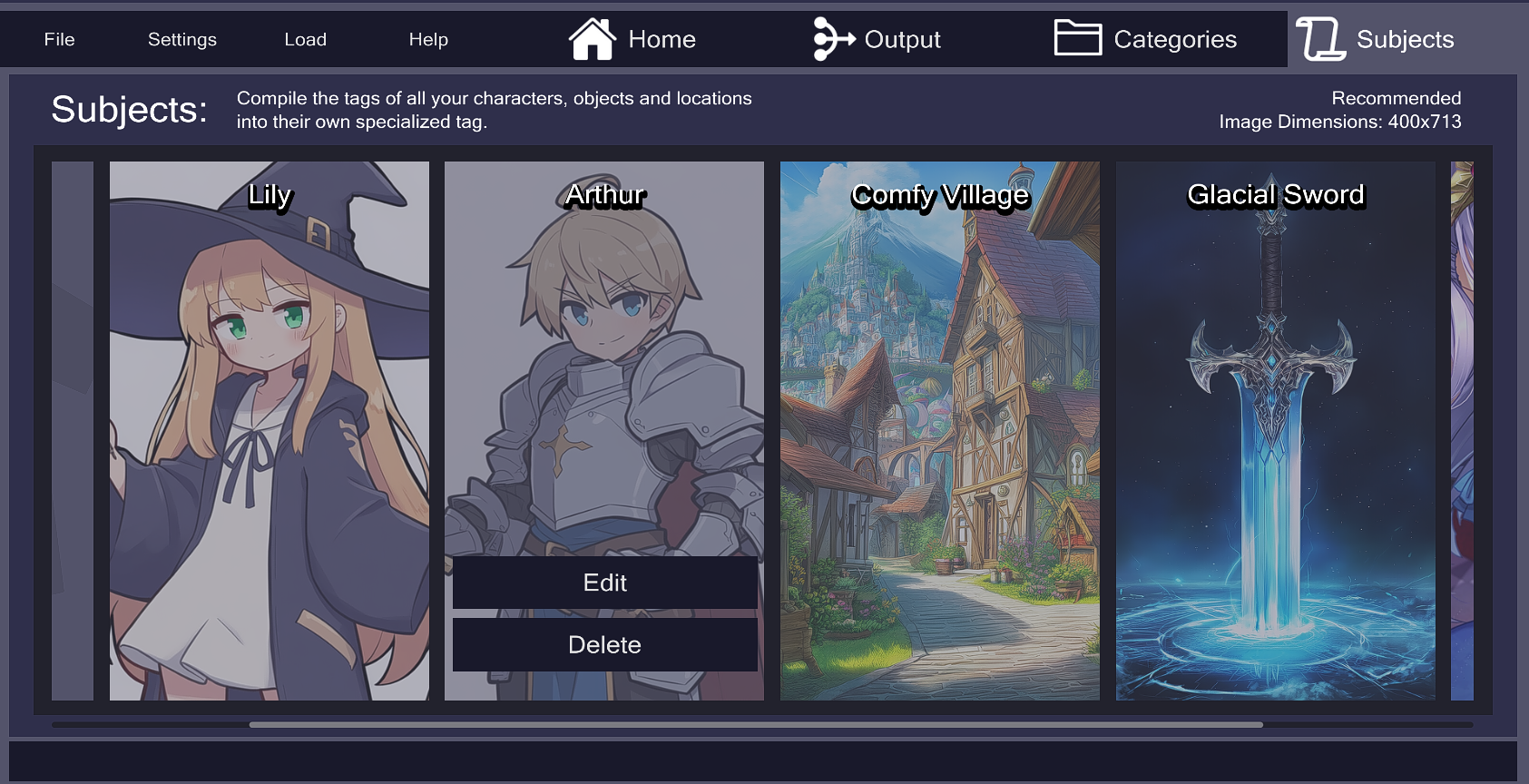
The subjects feature is similar to Categories, the only difference is it packs an abundance of tags into one singular user-defined tag, also known as a "subject tag".
Whenever a subject tag is referenced in a prompt, it will include all the tags inside it as part of the final prompt. This feature vastly improves the readability of long wordy prompts.
SAVING & LOADING
(Hover to reveal)
SAVING & LOADING
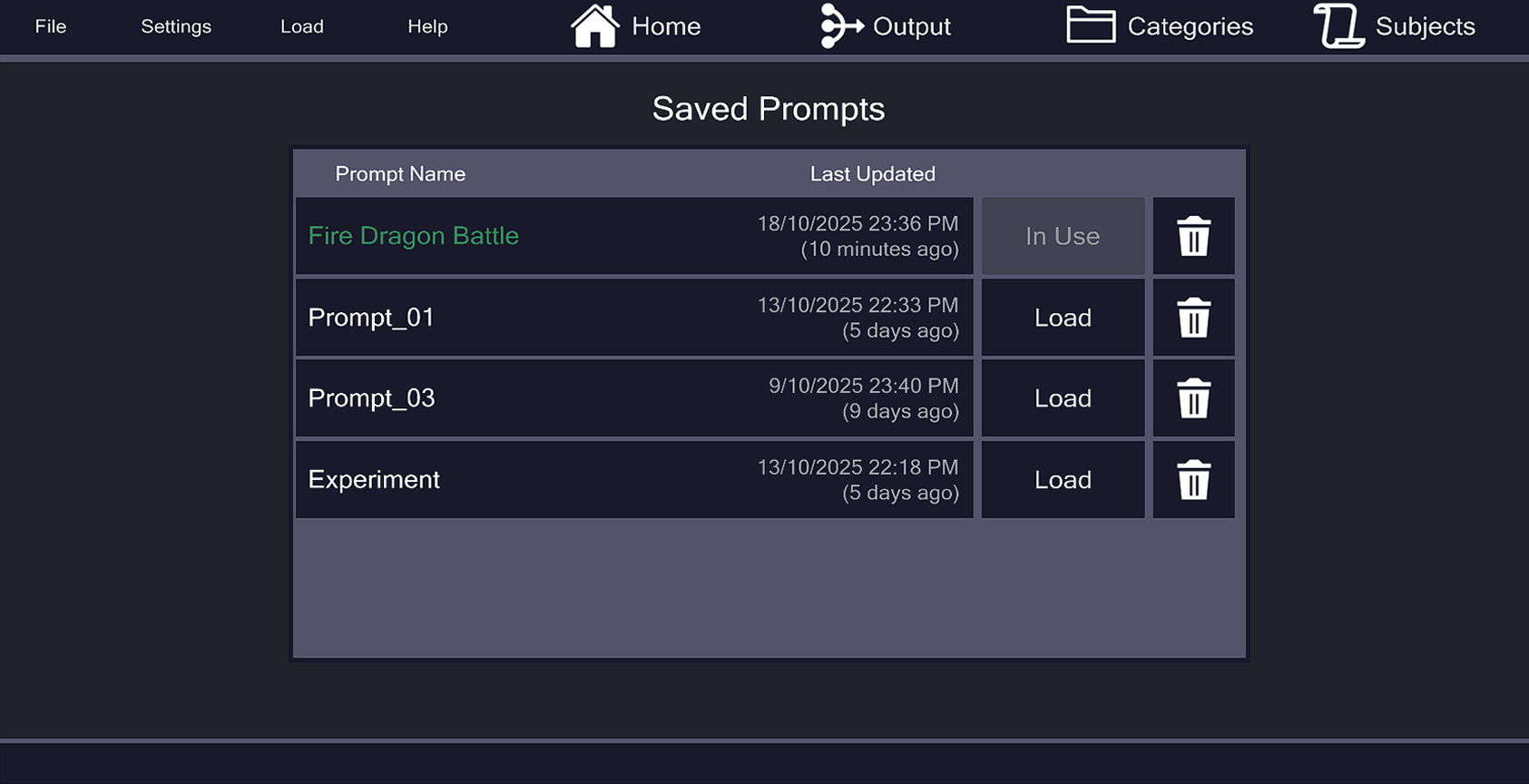
All prompts are automatically saved and can be accessed at any time while the app is open.
A save occurs whenever a change is made.There is also an option for manual saving.
UNDO & REDO
(Hover to reveal)
UNDO & REDO
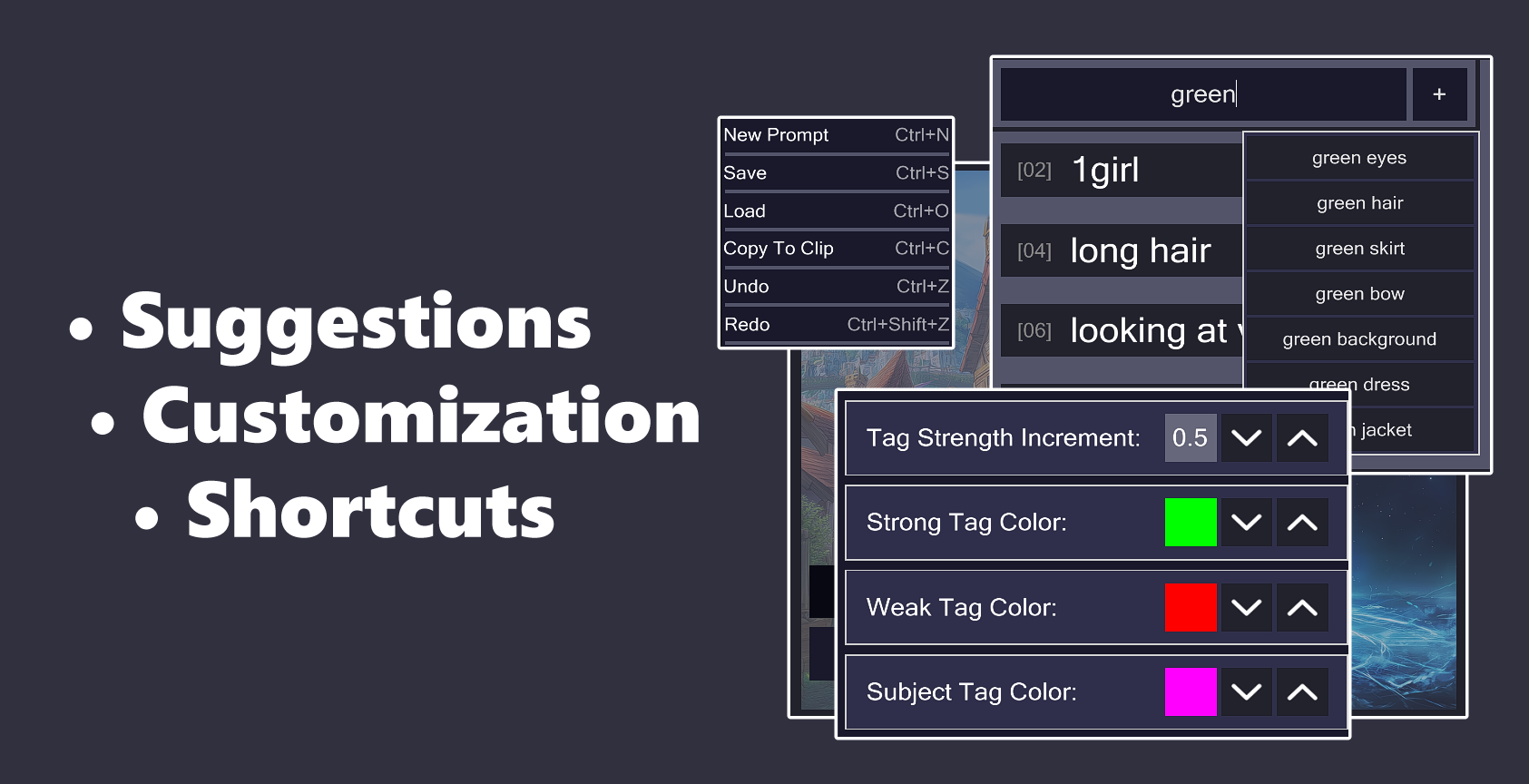
All actions can be reversed at the press of a button.
Just like how CTRL Z works in most industry software.
USER CUSTOMIZATION
(Hover to reveal)
USER CUSTOMIZATION
Many settings such as text color can be changed to fit the user's overall preference.
Sort order, display mode, suggestions, manual saving, etc
BASIC WORKFLOW
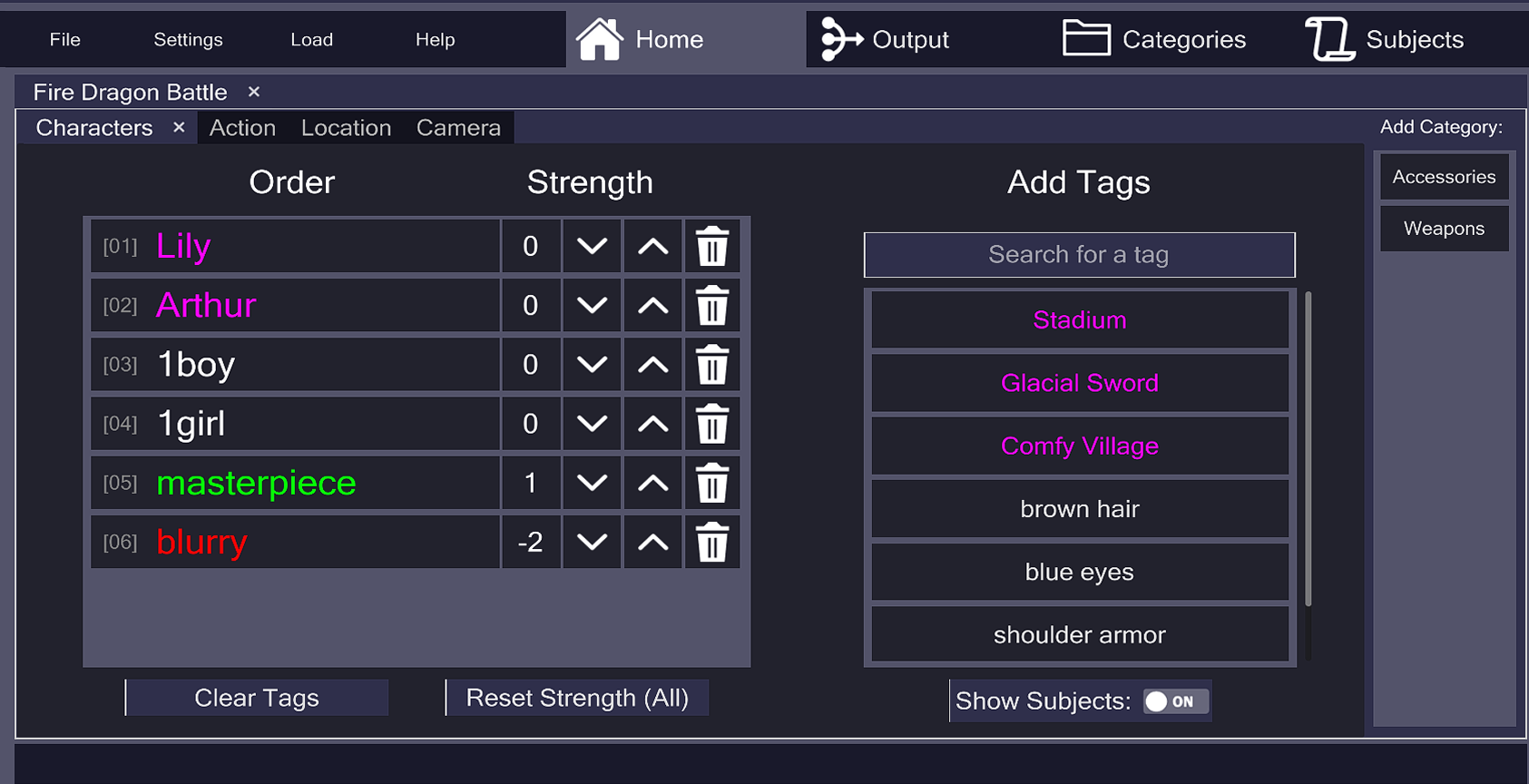
Users who have created their own Categories are able to view them in the "Home" section where prompts are made and edited.
The left side shows tags which are influencing the prompt, whilst the right side shows tags and categories which may be added to the prompt.
A prompt is assigned a name (in this case "Fire Dragon Battle") and Categories can be thrown into the prompt in order to use the tags contained inside them.
This offers a simple and intuitive to manipulate prompts, as all tags in one Category can be instantly removed and later re-added depending on the user's needs
Tags shown in pink text are Subjects and are available in every category.
Tags shown in green text indicate a strengthened value which emphasizes the effect the tag has on the final image.
Contrarily, red tags do the exact opposite and attempt to diminish the chances of something appearing in the image output.
The number values adjacent to the tags are a strength indicator. This can be adjusted by clicking on the up and down arrows beside them.
The decisive use of text colors, tabs, and arrows make using the tool feel both familiar and comprehensible.
TAG ORDER
Tags are indexed starting from "[01]" to make sorting them easier.
Every tag can be dragged up or down to change the order in which it appears.
BUTTONS
The buttons below each perform self-explanatory functions and allow for convenient batch editing.
REFRESHING
Changes made to a Category or Subject are immediately reflected on to the prompts which use them. This ensures consistency since prompts are saved separately.
{ INTERFACE }
Subject Creation Menu
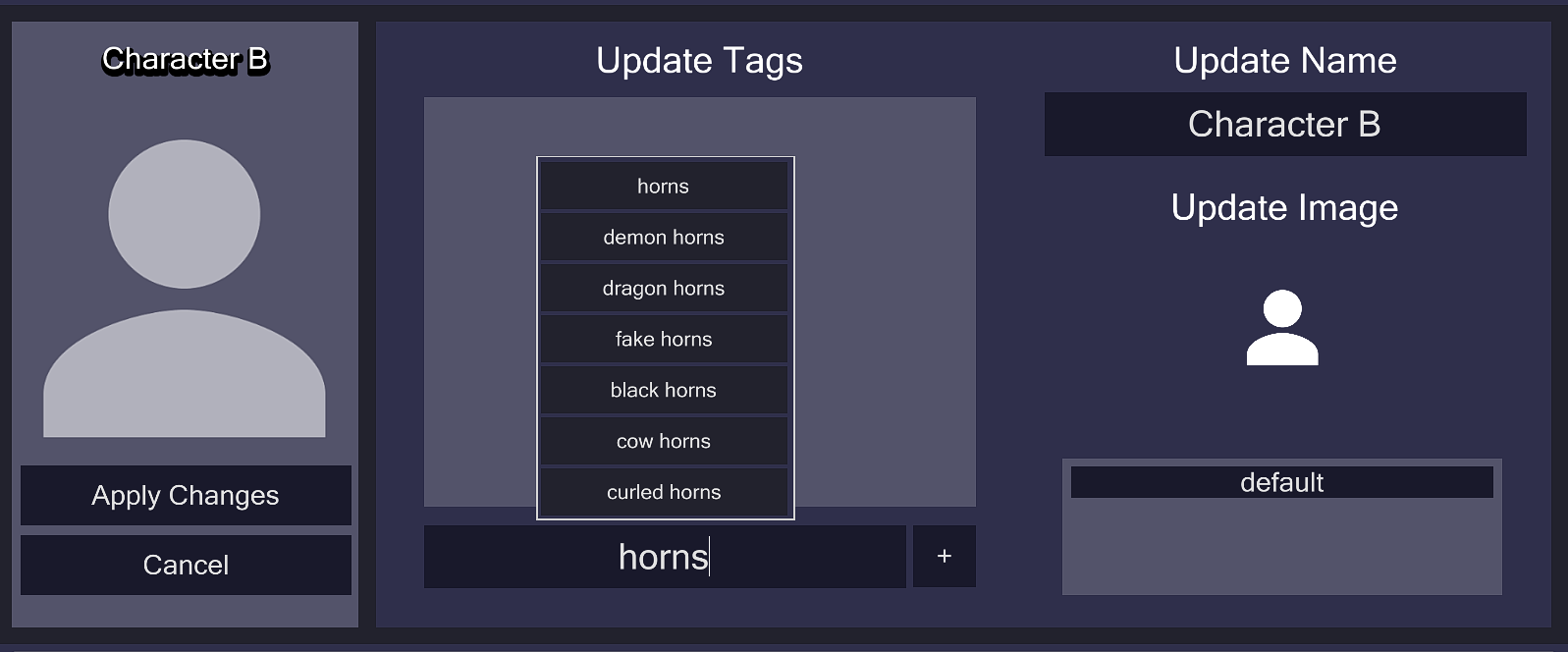
This menu is used for the swift creation of new subjects.
Alternatively, it can also be used to edit already existing subjects.
As mentioned earlier, a Subject is essentialy a pseudo tag which contains a multiple real tags inside it. Whenever a Subject is added to a prompt it's actually adding all the tags which are packed inside.
This offers greater convenience and saves a lot of time as Subjects can be used anywhere within a prompt.
A Subject can be represented through a name and optionally an image for better recognition.
Tags which can be added to a subject are suggested to the user once they begin typing, these tags are taken from a list of over 40,000 tags recognized by the NovelAI platform.
Prompt Output Menu
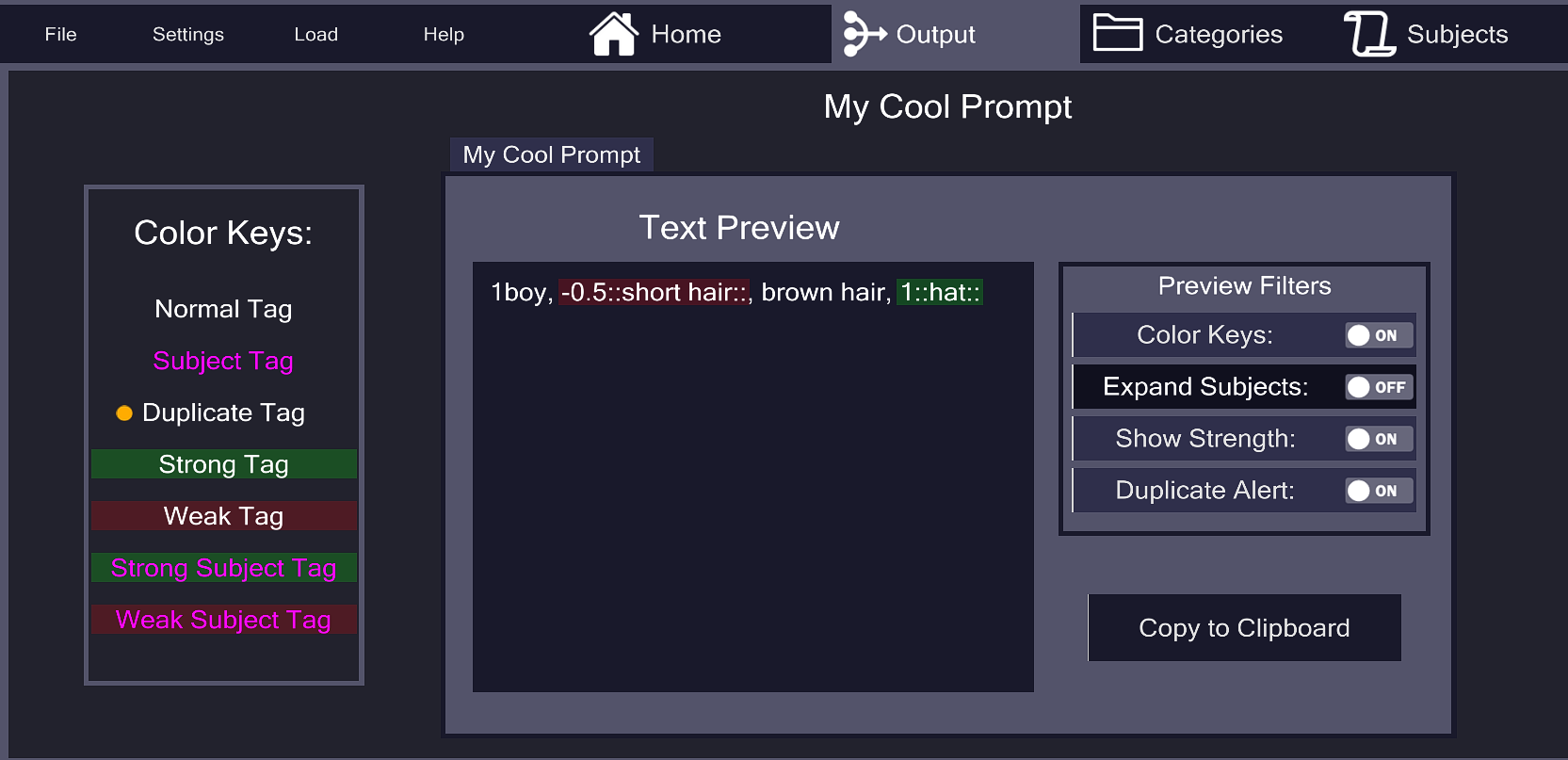
The output menu allows users to preview what the finished result of their prompt looks like.
It also highlights any duplicate tags as these may strengthen a tag and cause unwanted results.
Filters are provided on the right side to allow better legibility depending on the user's wants and needs.
All tags packed inside a Subject can be visibly unpacked here, allowing for precision when making changes to a prompt.
Things to note:
NovelAI prompts are usually in CSV format (Comma-Separated Values).
The influence of a tag can be increased or weakened through the use of curly brackets
Example: {{Blue Background}}. The more brackets, the greater the effect.
That being said, the platform offers a more practical solution where tags are enclosed in dual colons followed by a positive or negative number on the right side. 1::Blue Background::
This seemed like a much better option which is why I decided to implement it over the first.
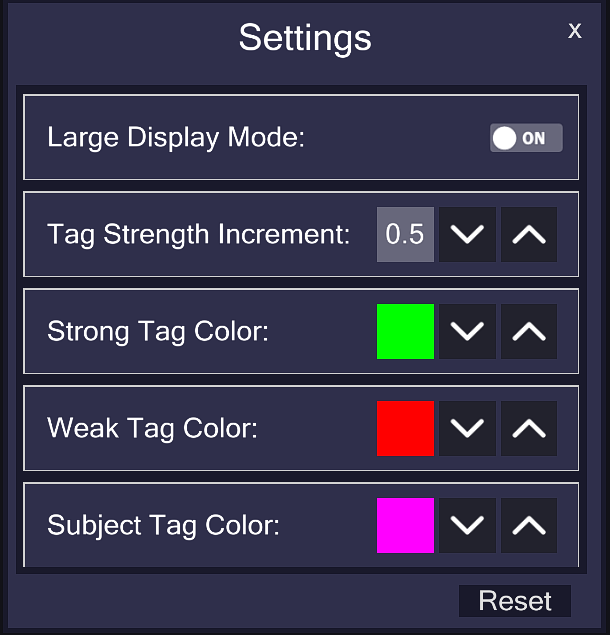
Settings Menu
As the name suggests this menu allows for users to directly configure the tool.
Many behaviors can be changed here such as automatic saving, layout order, and tag suggestions.
{ GALLERY }
{ OVERVIEW }
Tech Stack
- GitHub
- Python
DEVELOPMENT CHALLENGES
Undo & Redo
Creating a dynamic history system which allows for actions to be undone and redone required me to explore an abundance of different scenarios, ensuring this behavior remains constant regardless of what the user does.
Responsive UI
Categories and Subjects are saved separately from Prompts.
This allows them to be re-used without having to be redefined.
Making such a system meant that changes made to a specific Category or Subject have to be directly reflected onto every Prompt which uses it.
Sorting Order
The ordering of tags, categories and subjects impacts what the final image looks like.
Therefore when dragging certain elements behind or in front of another, the change had to also be replicated on the back-end.